
Create a Project
Start a Project for a bid.
A Project holds everything for one bid: its drawings, Chats, instructions and finished files. Create one for each bid.
Start a Project
Choose New project. Owners, admins and estimators can create Projects. You will find it as the + beside Projects in the sidebar, as the New project button on the Projects page, and in the command palette.
Enter the Project name. It can be up to 200 characters. Everything else can wait, and Next opens once you have a name.
Add your files, or skip this step. The window reads "Add the drawings, specifications and addenda, or skip and add them later." Drop files onto Drop files here, or click to browse.
Choose Create project. If you did not add any files, the button reads Create without files.
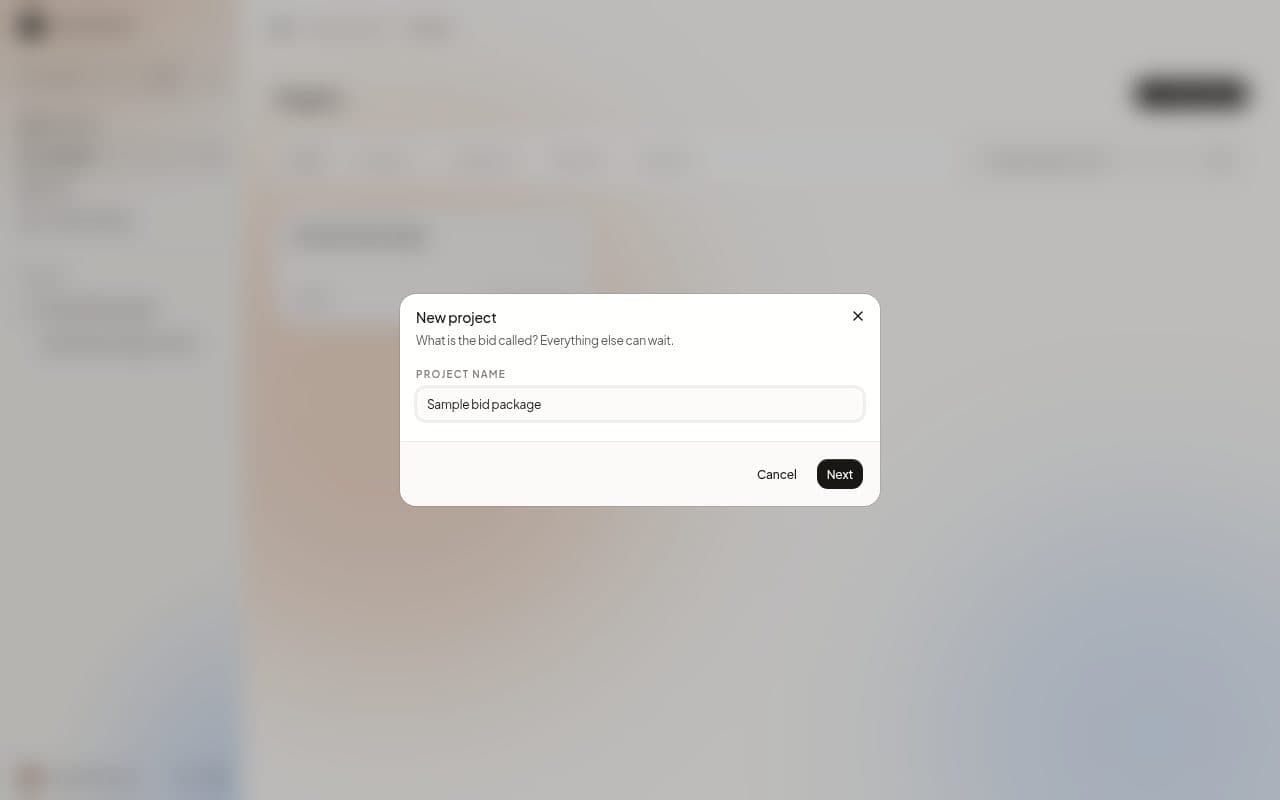
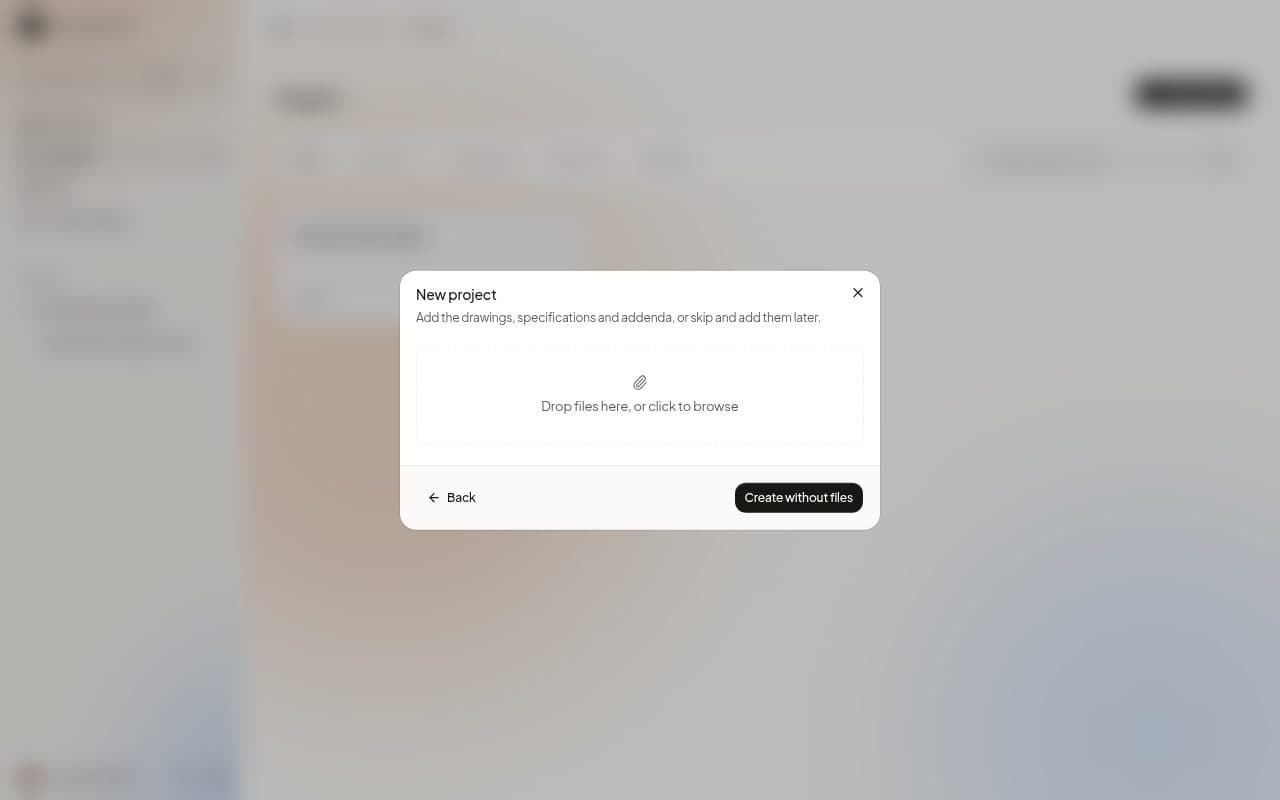
Each file shows its progress while it uploads, and MillOS confirms "Project created with 3 files." when it is done.
Where you land
You arrive on the Project page, with Start a chat at the top and What came in showing the files you added.
You can add the contractor and the deadline later, in the Project's settings.
Next steps
Last updated on