
The Projects list
Find, pin, rename and organise your Projects.
Choose Projects in the sidebar to see every bid in your Workspace as a card. Each card shows the Project name, the general contractor beneath it, a status, and a due date or the time it was last updated.
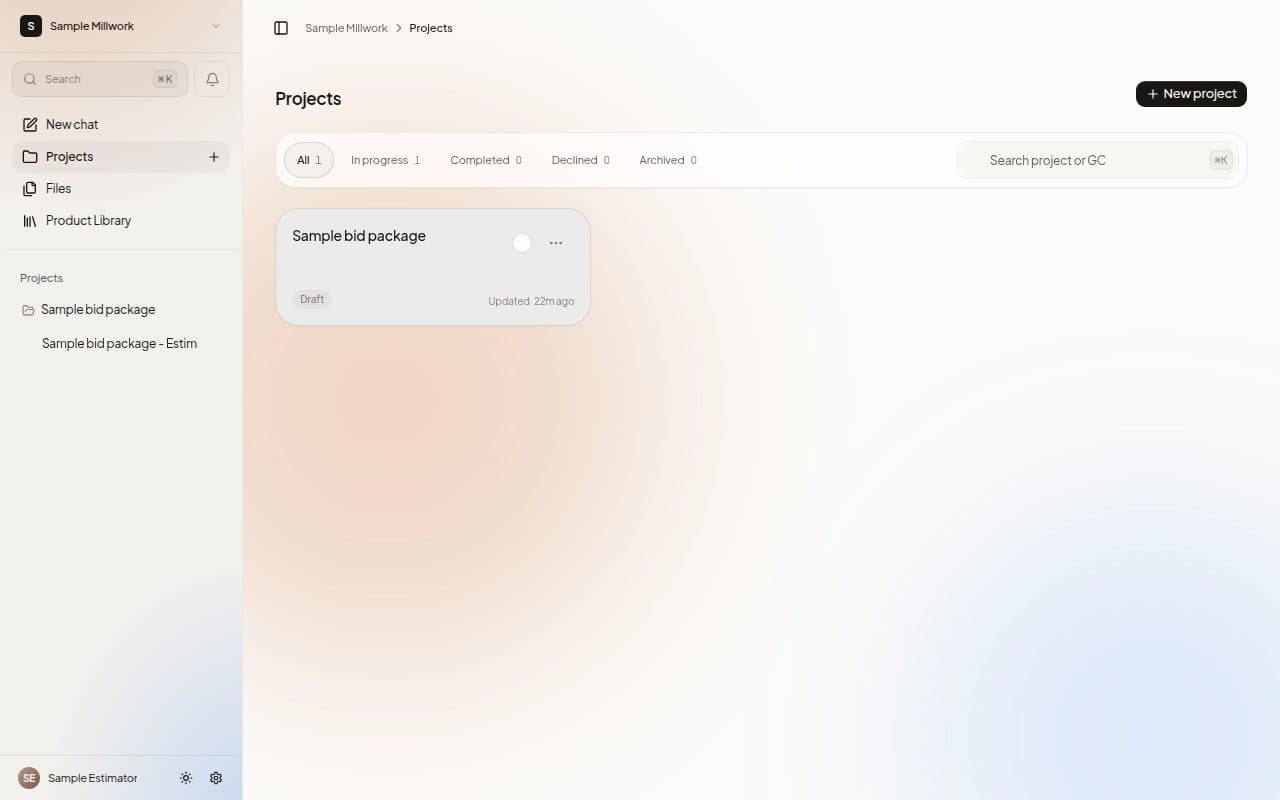
Find a Project
- Filter tabs sit above the cards, each with a count: All, In progress, Completed, Declined and Archived.
- Search with the box that reads "Search project or GC".
- Pinned Projects come first, then the most recently updated.
Read a card
A status label shows where the bid stands: Draft, Evaluating, Estimating, In review, Ready, Completed, Declined or Archived.
The line at the bottom right tells you about the deadline: Due in a number of days, Due today, or a number of days overdue. With no deadline set it shows when the Project was last updated. While a Chat is running, the label changes to Estimating, and Waiting appears when a Chat needs your answer.
Open a card to go to the Project.
Manage a Project
Open the three-dot menu on a card, labelled Actions for and the Project name:
| Item | What it does |
|---|---|
| Select | Start selecting several Projects. |
| Pin or Unpin | Keep a Project at the top of the list. |
| Rename | Change the name. Press Enter to save. |
| Project settings | Open the Project's settings. |
| Archive or Unarchive | Put a finished bid away, or bring it back. |
| Delete | Move the Project to the Recycle Bin. |
Owners, admins and estimators can rename, archive and delete Projects. Deleting a Project moves it to the Recycle Bin, where you can restore it.
Select several
Choose Select on a card to show a checkbox on every card. A bar then shows N selected, with Clear and Delete beside a select-all checkbox.
Start a new Project
Choose New project at the top of the page.
Next steps
Last updated on