
The Project page
Everything about one bid, on one page.
Open a Project to see its whole story: what came in, what went out, and the Chats in between.
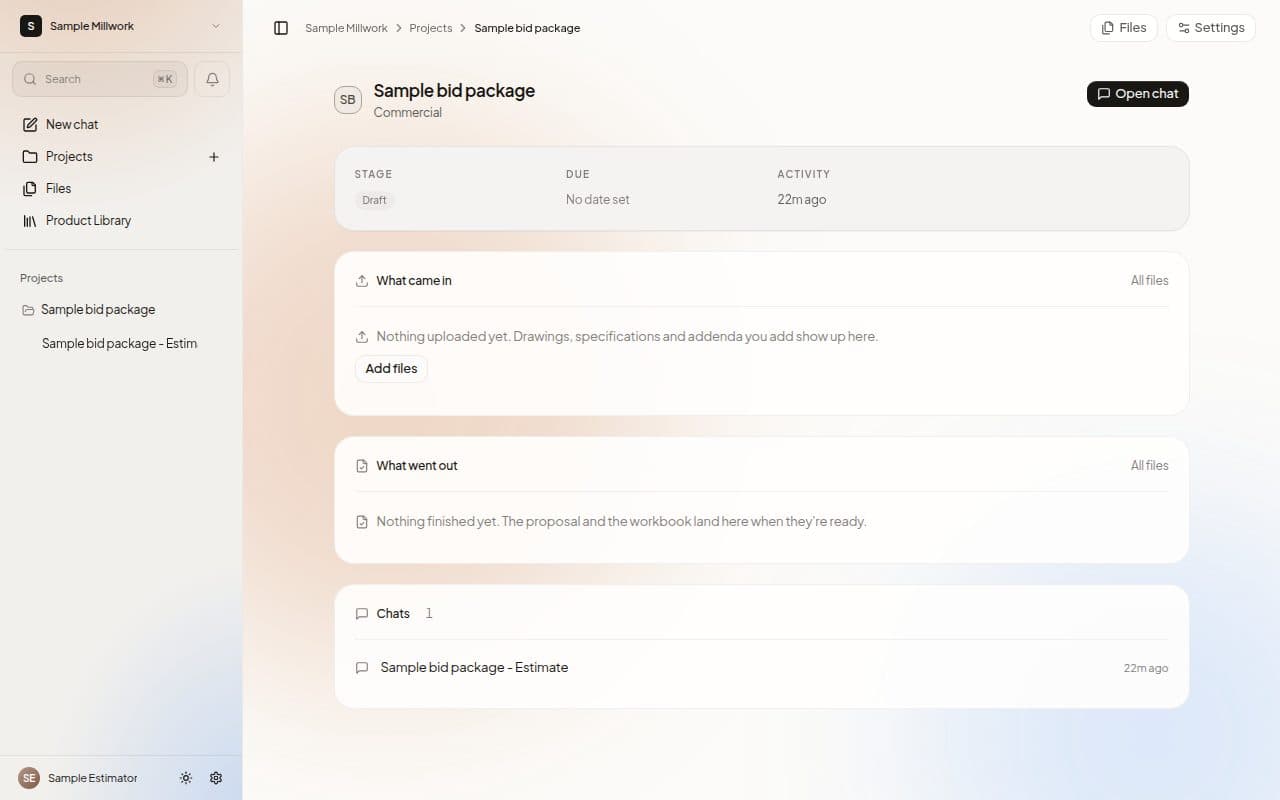
At the top
The Project name, with the general contractor and the type of job beneath it. On the right, Start a chat opens a new Chat. If the Project already has Chats, the button reads Open chat and opens the newest one.
A small card gives you the facts:
- Stage, the status label.
- Due, the bid deadline, or No date set.
- Activity: Working now, Waiting on you, or how long ago the Project was last updated.
Estimator instructions
If the Project has instructions, they appear here with an Edit link. The note beside them reads "Read on every chat in this project."
What came in
The drawings, specifications and addenda you added, with their size and when they arrived. Choose All files to open the Project's Files, or Add files to bring more in.
What went out
The finished files. The proposal and the workbook appear here when they are ready. Choose All files to see them all.
Chats
Your six most recent Chats in this Project, each with its title and time. Start a chat begins a new one.
Buttons at the top
- Files opens every file in the Project.
- Settings opens the Project's settings.
The Project menu
In the sidebar, the three-dot menu on a Project gives you Pin project, Open project, Takeoff Studio, Estimate review, New chat and Project settings.
Next steps
Last updated on