
Project settings
Name, deadline, instructions and model for a Project.
Project settings holds what MillOS needs to know about one bid, plus its notes and its activity. Open it with Settings on the Project page, or from the Project's menu in the Projects list or the sidebar.
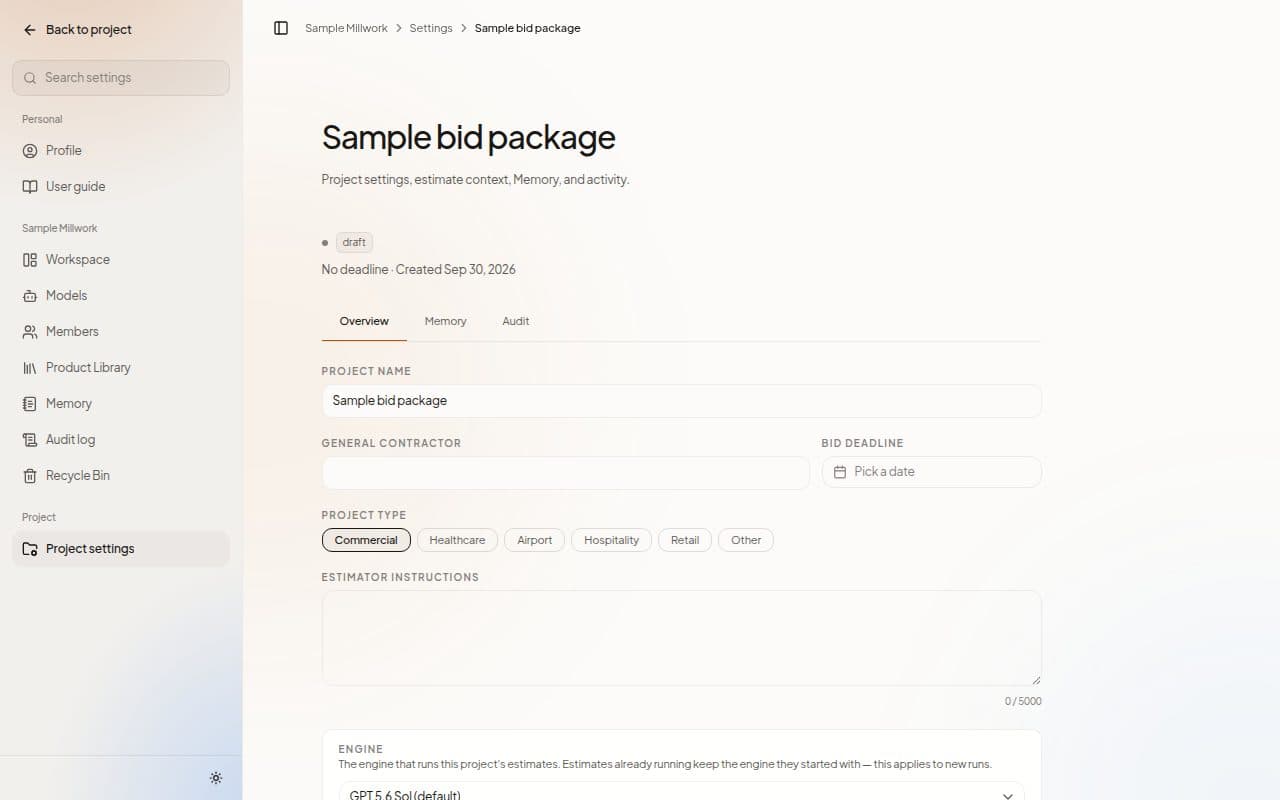
Everyone in the Workspace can read this page. Estimators, admins and owners can change it.
Overview
The Overview tab opens first. Change any of these and choose Save changes, or Discard to drop your edits.
| Field | What it is |
|---|---|
| Project name | The name of the bid, up to 200 characters. |
| General contractor | Who you are bidding to. Optional. |
| Bid deadline | Choose Pick a date. The Projects list counts down to it. |
| Project type | Commercial, Healthcare, Airport, Hospitality, Retail or Other. |
| Estimator instructions | Notes MillOS reads on every Chat in this Project, up to 5,000 characters. |
Engine
Engine chooses the model for this Project's estimates. It applies to new runs, and an estimate that is already running keeps the model it started with. The page shows the Effective engine. Choose Save engine to keep a change.
Archive and delete
- Archived makes the Project read-only and hides it from the dashboard. You can restore it at any time, and it saves as soon as you switch it.
- Delete project moves the Project to the Recycle Bin, where you can restore it. MillOS asks Delete this project? before it does.
Memory
The Memory tab holds the notes MillOS saved about this Project, which every Chat here recalls. Use Search memories to find a note, and the trash button on a row to clear the Project's memory note.
Audit
The Audit tab lists what has happened in the Project, newest first, with Timestamp, Actor, Action and Resource. Choose a row to see its full details. It shows the latest 200 events.
Next steps
Last updated on