
Workspace and Settings
Members and invites
Invite people and set roles.
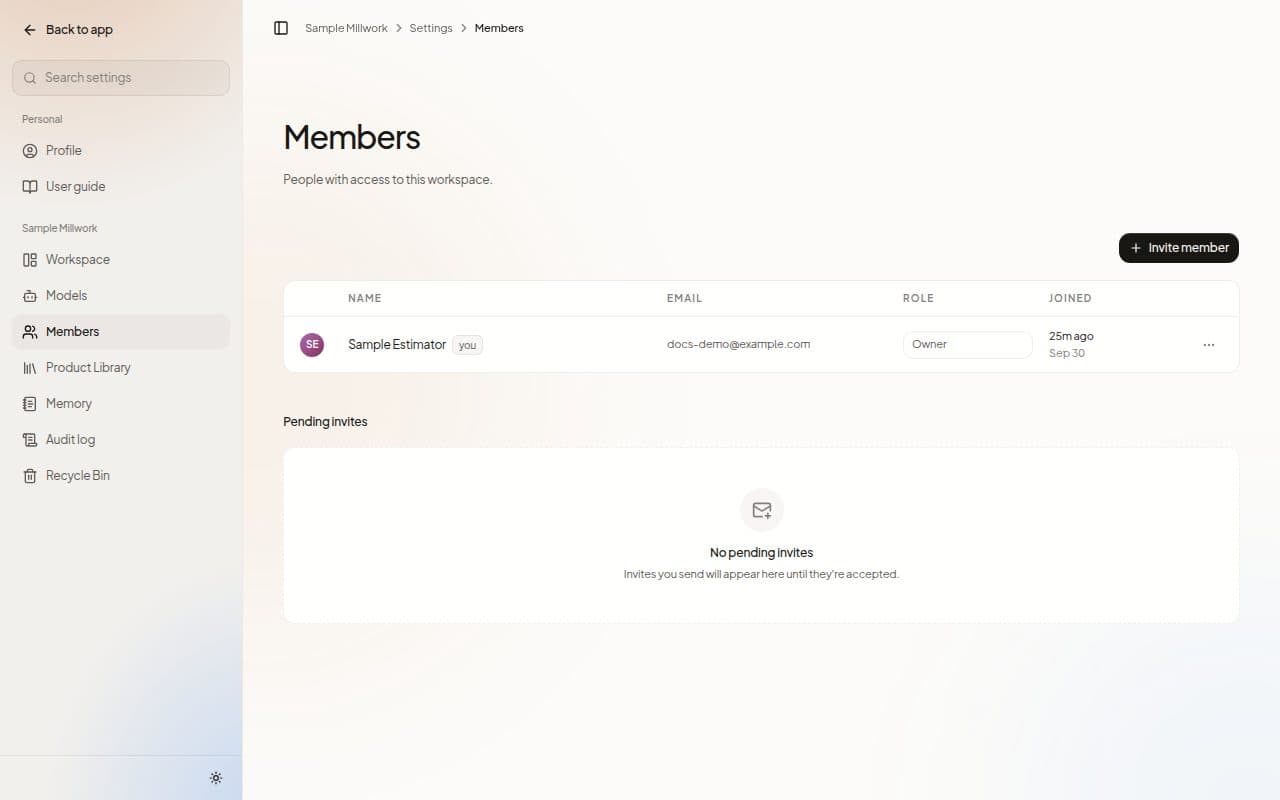
Members lists everyone with access to your Workspace, with their Name, Email, Role and when they Joined.
Roles
| Role | Who it is for |
|---|---|
| Owner | The person who runs the Workspace. |
| Admin | People who manage members and settings. |
| Estimator | People who make estimates and decisions. |
| Viewer | People who read the work. |
Invite someone
Owners and admins see Invite member.
Choose Invite member.
Enter their Work email and choose their Role. Estimator is selected to start.
Choose Send invite.
Invites that are waiting appear under Pending invites, where you can Resend or Revoke them.
Manage a member
Owners and admins can change a member's role in the Role column, and open Member actions on a row.
- Remove from workspace takes someone out of the Workspace. MillOS asks Remove member, and their access ends at once. Owners can remove anyone. Admins can remove anyone except an owner.
- Transfer ownership is for owners. Choose another member, confirm, and they become the owner while you become an admin.
The menu on your own row has no actions.
Next steps
Last updated on