
Getting started
A tour of the app
A walk through the sidebar, the profile menu and Settings.
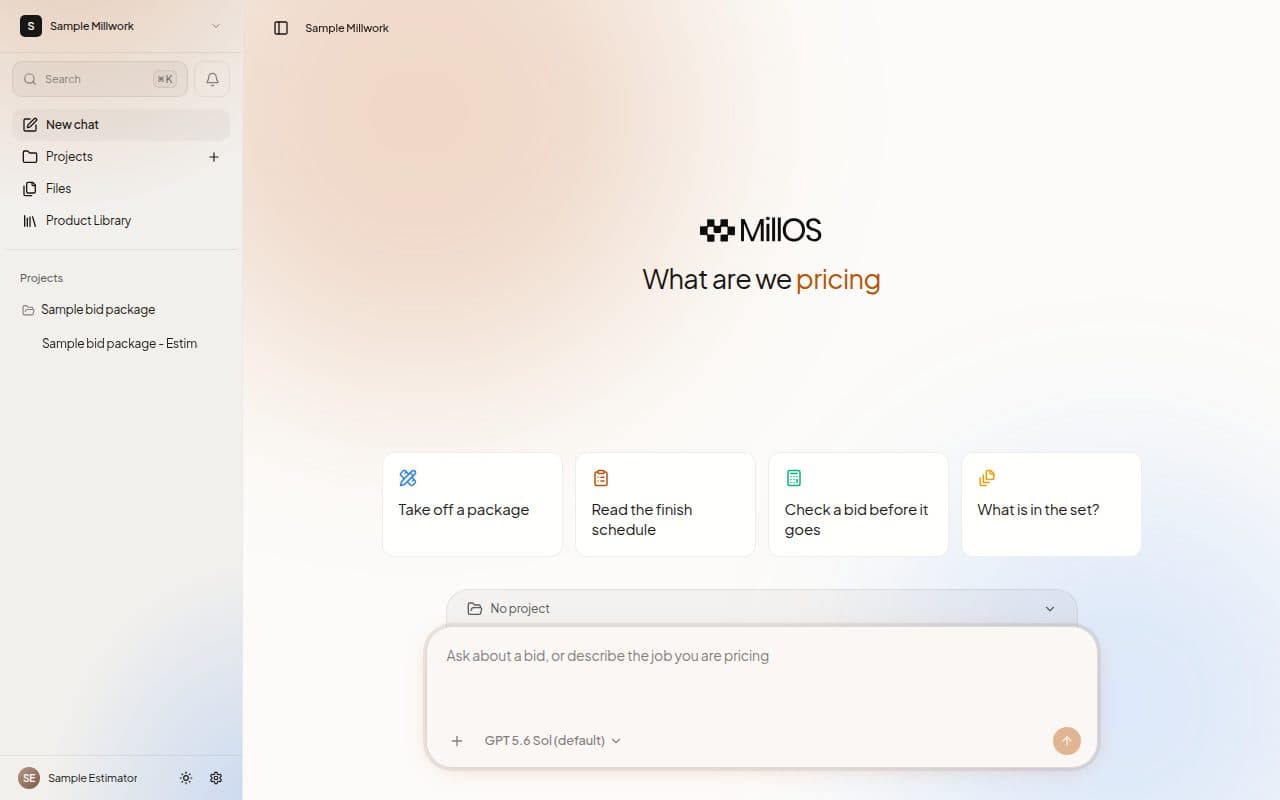
Everything you need is in the sidebar on the left. Press Command or Ctrl with B to hide it or bring it back.
The sidebar
From top to bottom:
| Item | What it does |
|---|---|
| Search | Opens the command palette. Press Command or Ctrl with K. |
| Bell | Shows what needs your attention, with Chats that are waiting for an answer, working, or stopped. |
| New chat | Opens the home page, ready for a question or a new estimate. |
| Projects | Opens your Projects. The + beside it starts a New project. |
| Files | Opens the Workspace's file manager. |
| Product Library | Opens your products and rates. |
| Pinned | Projects you pinned. Pin one from its three-dot menu, or drag it here. |
| Projects | Your Projects, each with its own menu and a shortcut to start a Chat. |
| Recents | Chats that do not belong to a Project. |
At the bottom of the sidebar you find your profile, the theme toggle, and a Settings gear.
The Project menu
Open the three-dot menu on a Project in the sidebar to reach:
- Pin project or Unpin project
- Open project
- Takeoff Studio
- Estimate review
- New chat
- Project settings
The profile menu
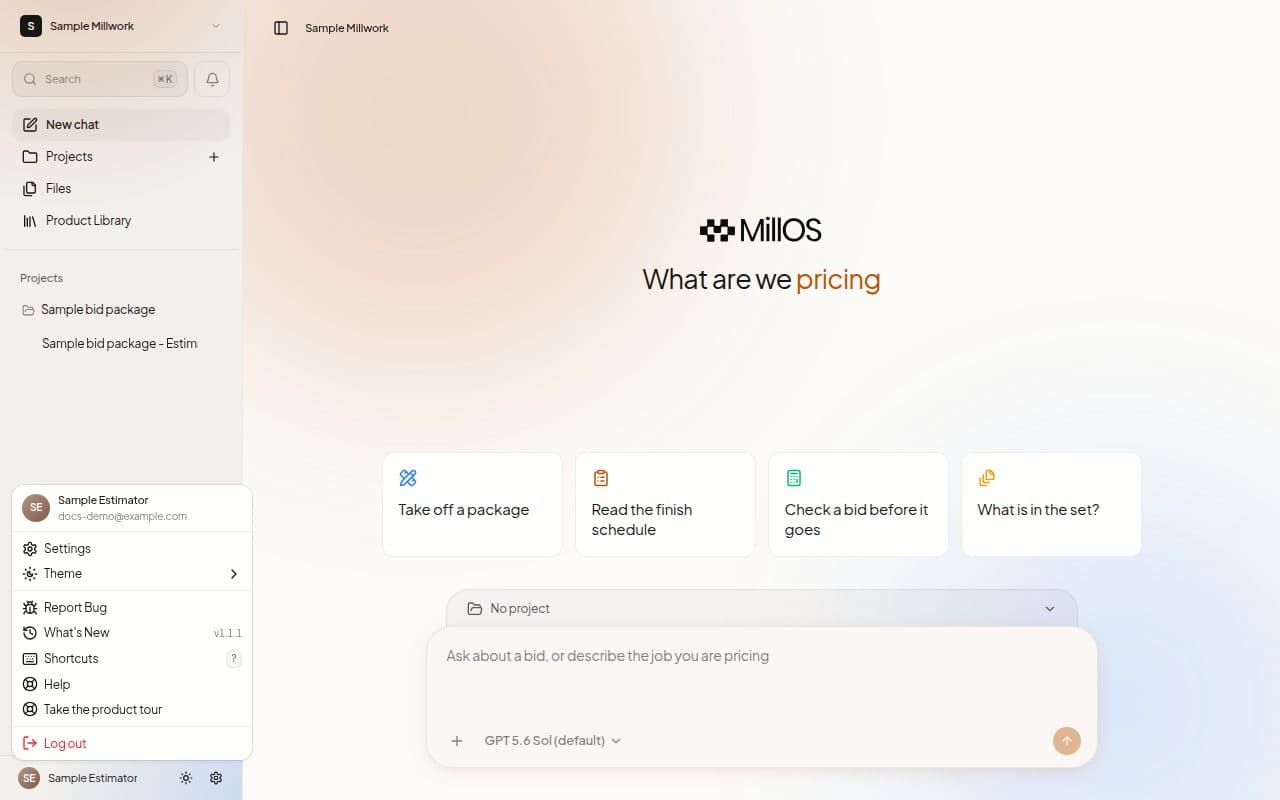
Choose your name at the bottom of the sidebar:
| Item | What it does |
|---|---|
| Settings | Opens Settings at your Profile. |
| Theme | Choose Light, Dark or System. |
| Report Bug | Send a description of a problem to the MillOS team. |
| What's New | See what has changed in MillOS. |
| Shortcuts | Show the keyboard shortcuts. |
| Help | Get help. |
| Take the product tour | Replay the short guided tour. |
| Log out | Sign out. |
Next steps
Last updated on